
SOS on iPhone: What Does It Mean?
Key Takeaways
- SOS or SOS Only on iPhone means you can still reach emergency services even when your regular cellular network isn’t available.
- iPhones use cross-carrier routing, Wi-Fi calling, and satellite support to keep you connected when you need help during emergencies.
- Most SOS issues come from simple connectivity problems and can be fixed with quick troubleshooting steps.
We’ve all been there: you glance at your iPhone and suddenly, in the corner where your signal bars should be, you see ‘SOS.’ Cue the mild panic. Did your service just die? Is your phone broken? Is this the universe telling you to stop scrolling TikTok?
Take a breath. At RedPocket, we’re here to decode what’s really happening. In this guide, we’ll explain exactly what it means on iPhone, how it works behind the scenes, and what you can do if it won’t go away.
What SOS Means on iPhone
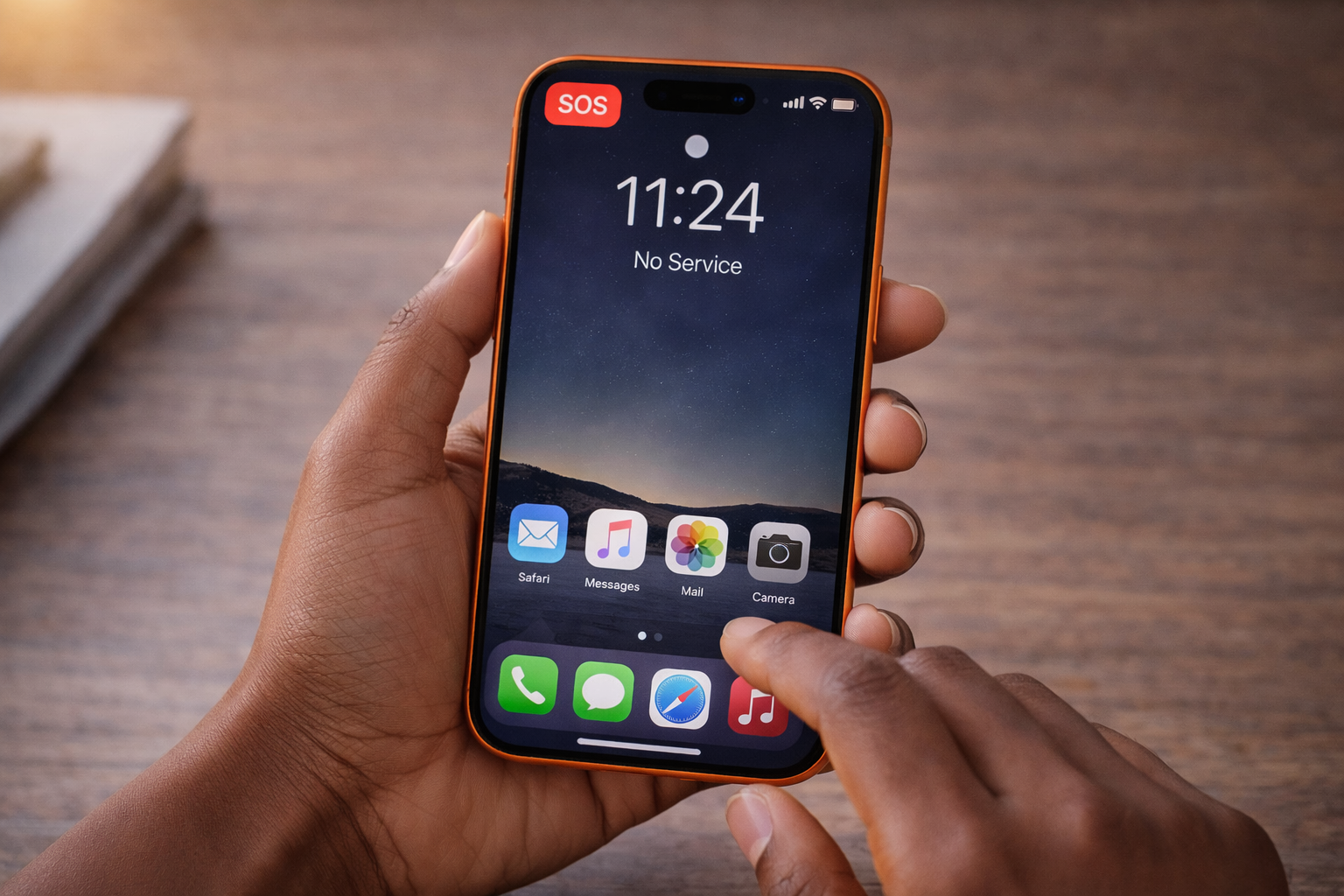
When ‘SOS’ or ‘SOS Only’ pops up in your iPhone’s status bar, it’s not a glitch, a virus, or a sign that your phone’s about to crumble. It’s simply your device saying: “I can’t reach your usual carrier right now, but I’ve still got your back.”
In plain English, ‘SOS’ or ‘SOS Only’ on iPhone means your device can’t connect to standard cellular networks, but you can still contact emergency services like 911 using any available carrier network in your region.
That distinction matters. Traditional No Service means you’re off the grid completely. SOS Only means your iPhone is prioritizing safety and switching into an emergency-call-ready state, so even if your normal carrier can’t reach you, emergency responders still can.
How To Activate Emergency SOS on Your iPhone
When things go sideways, the last thing you want is confusion. Emergency SOS is built for moments when adrenaline is high and time is tight, so every activation method is simple, fast, and consistent across modern iPhones.
Here’s how to trigger Emergency SOS when you need it:
1. Press-and-hold method
Hold the side button + either volume button until the Emergency SOS slider appears. Keep holding to have your iPhone automatically call emergency services.
2. Slider method
If you’d rather stay in control, just slide Emergency SOS on the screen once it pops up.
3. Rapid press method (some regions/models)
Press the side button five times quickly to bring up the SOS menu instantly.
4. Apple Watch pairing connection
If your iPhone is nearby, an SOS call made on your Apple Watch will route through your phone automatically.
And because we all know accidental SOS calls happen (hi, gym sessions and tight pockets):
- If you activate SOS unintentionally, tap Stop immediately and confirm Cancel Call.
- To cut down on accidental triggers, go to Settings → Emergency SOS and turn off “Call with Hold” or “Call with 5 Presses,” depending on how you want your phone to behave.
Bonus tip: Double-check your Emergency Contacts and Medical ID in the Health app — they’re automatically notified if you ever use SOS.
Emergency SOS via Satellite on iPhone 14 and Later
Newer iPhones take safety a step further, literally above the clouds. Emergency SOS via Satellite is Apple’s “when all else fails” backup, designed for those rare moments when you’re completely off-grid.
Unlike regular SOS mode, which relies on nearby cellular networks or Wi-Fi, this feature taps into satellites orbiting the Earth. So even if you're miles from a tower, deep in the mountains, out on a road trip, or somewhere your bars have fully vanished, your iPhone can still get a message out.
Who Can Use It and Where It Works
This feature is exclusive to iPhone 14 and newer models, and it’s currently available only in select regions. Apple keeps expanding the list, but right now, it’s mostly the U.S., parts of Europe, Canada, Australia, and a few additional supported countries. If you’re traveling, your phone will let you know automatically whether satellite SOS is available.
And the best part? You get two years of free access from the day you activate your new iPhone.
How Satellite SOS Actually Works
When you try to call emergency services in a no-signal zone, your iPhone doesn’t just shrug and give up — it switches into satellite mode. You’ll see an option that reads “Emergency Text via Satellite”, and from there, your phone becomes a personal guide:
- You’re prompted to point your phone toward the sky, and your iPhone will use directional arrows to help you connect with a passing satellite.
- Once aligned, your phone sends a series of compressed messages — tiny data packets optimized to travel through space — so responders get the details they need.
- You’ll answer a short, on-screen questionnaire that covers the crucial info: what happened, where you are, if anyone is injured, and what kind of help you need.
- Your location is shared automatically and continues updating so emergency teams can track where you are, even if you’re moving.
- Depending on your surroundings, each message can take 15 to 60 seconds to transmit. Trees, mountains, and heavy clouds can slow things down, but the system keeps trying until it gets through.
Why It Matters
Satellite SOS isn’t something you’ll use every day, and you hopefully never need to. But when you’re somewhere cellular networks can’t reach, having this feature in your pocket can be the difference between isolation and getting help.
It’s safety at its most modern: a blend of Apple engineering, Globalstar satellite tech, and smart software that walks you through every step when panic could easily take over.
Common Reasons for SOS Mode Appearing
We’ve talked about what SOS means and how your iPhone pulls off its behind-the-scenes magic. But here’s the question everyone actually Googles at 2 a.m.: “Why is my phone suddenly in SOS and how do I make it stop?”
Good news: SOS Only usually pops up for totally normal reasons, not because your iPhone is dying or your carrier is mad at you. It’s almost always a quick connectivity issue, not a hardware emergency.
Here are the most common real-world triggers:
You’re in an Area With No Carrier Coverage
This is the most common (and the most boring) culprit. Sometimes your iPhone isn’t broken and your carrier isn’t broken, but the location is. Parking garages, elevators, basements, mountain roads, packed arenas, and national parks can choke out normal service.
When your phone can’t reach your carrier’s network, it automatically flips into SOS or SOS Only, letting you still call emergency services while it waits for a stronger signal. Think of it as your phone saying: “The vibes are off here. I’ll reconnect when we’re back outside.”
Your Carrier Is Having a Temporary Outage
Yup, outages still happen in 2025, even with the big carriers. A tower goes down, a fiber line gets cut, technicians do overnight maintenance, or half your city jumps online during a concert or big sports event.
When your carrier temporarily goes dark, your iPhone switches to SOS Only so you can still reach 911 if you need to. Once the network stabilizes, your regular bars return automatically.
Your SIM Card Is Loose, Damaged, or Missing
It sounds small, but even the tiniest SIM card misalignment can send your phone into SOS mode. A dropped phone, a recently swapped SIM, or dust in the tray can break the connection between your device and your carrier.
When that link fails, the phone defaults to emergency-only mode. And if you’re using an eSIM? Glitches or incomplete provisioning can trigger the same thing. Easy fix, but super common.
A Setting Is Switched Off by Accident
This one sneaks up on people. A quick swipe in Control Center, a toddler playing with your phone, or a tap during a workout, and suddenly, Airplane Mode is on, or Cellular Data is toggled off.
Network Selection might even be set to “Manual,” which blocks your iPhone from switching between available towers. Any of these can cut your phone off from its carrier and drop you straight into SOS or SOS Only. Luckily, one toggle usually fixes everything.
Your Account Isn’t Active
If your plan isn’t active, your iPhone can’t authenticate with your carrier, and when that happens, it goes straight into SOS mode. This includes suspended accounts, declined payments, expired monthly cycles, or switching carriers without completing activation.
Even a slight delay in account processing can temporarily put your device in SOS Only. Once your line is fully active again, normal service snaps back automatically.
Troubleshooting When Your iPhone Shows SOS
If SOS or SOS Only isn’t going away, don’t panic and don’t assume your phone is fried. Most fixes are quick, simple, and totally doable without a trip to the Apple Store.
Here’s how to actually fix SOS on iPhone and restore your normal cellular connection:
Move to an Area With Better Coverage
Before you touch a single setting, walk a few steps. Dead zones happen in elevators, garages, concerts, wooded areas, and concrete buildings. Stepping outside or closer to a window can be enough to reconnect you to your carrier.
Eject and Reinsert Your SIM (or Re-Enable Your eSIM)
A loose or glitchy SIM is one of the biggest SOS offenders.
- Pop the SIM tray out, wipe the card gently, and reinsert it securely.
- On eSIM devices, toggle your line off and back on in Settings → Cellular.
If your SIM is damaged, your iPhone will stay in SOS until it’s replaced.
Make Sure Airplane Mode Isn’t On
It happens more than people admit — a stray swipe in Control Center and boom, you’re offline.
- Go to Settings → Airplane Mode and turn it off. If it’s already off, toggle it on and off again to force a network refresh.
Restart Your iPhone
The classic fix for a reason. A reboot clears temporary network bugs that can trap your device in SOS mode.
- Press and hold the side + volume button → slide to power off → wait 10 seconds → turn it back on.
Update to the Latest iOS Version
Outdated iOS versions can cause connectivity glitches, especially after carrier updates.
- Go to Settings → General → Software Update and install anything new.
Reset Network Settings
This one sounds scary, but it isn’t. You’ll just need to rejoin Wi-Fi networks afterward.
- Go to: Settings → General → Transfer or Reset iPhone → Reset → Reset Network Settings.
This clears corrupted settings that sometimes push your phone into SOS.
Using Dual SIM? Check That Both Lines Are Enabled
If one line is disabled or misconfigured, your iPhone may fall back into SOS mode.
- Go to Settings → Cellular and make sure both lines and “Allow Cellular Switching” are active if you use them.
Contact Your Carrier if Nothing Changes
If you’ve tried everything and are still stuck in SOS, the issue may be:
- an inactive account
- a suspended plan
- a provisioning error
- a local outage
Your carrier (hi, RedPocket) can quickly verify your line and reset things on their end.
And remember: even while troubleshooting, your iPhone can still call emergency services through SOS mode. That safety feature stays active until your normal service returns.
How SOS Enhances Your Safety During Emergencies
iPhone SOS is a safety system designed to quietly work in the background when things go wrong. And while most people only think of SOS as “that thing that calls 911,” it’s actually doing way more to protect you before, during, and after the call.
Real-time location updates
When you use SOS, your iPhone sends continuous location updates to emergency responders, not just a one-and-done pin drop.
If you’re injured, moving, or can’t speak, your phone keeps sharing updated coordinates automatically. It’s a game-changer in situations like car crashes, hiking injuries, or getting stranded during a storm.
Medical ID support when you can’t speak
If you set up your Medical ID in the Health app, SOS can surface critical info for responders, including allergies, medications, conditions, and emergency contacts.
In situations where you’re unconscious, disoriented, or unable to talk, your iPhone steps in for you and provides the details that could guide urgent care decisions.
Faster emergency response times
Because SOS mode uses optimized routing and enhanced data-sharing systems, emergency calls made through iPhone SOS are responded to 23% faster than standard 911 calls.
That might sound small on paper, but in real emergencies, minutes matter.
Instant alerts for your emergency contacts
When SOS is used, your chosen emergency contacts get a text automatically. It includes your current location and updates if you move.
This means your people aren’t panicking in the dark. They know what’s happening and where you are.
Frequently Asked Questions
Why does my iPhone say SOS or SOS Only?
It means your iPhone can’t connect to your usual carrier, but it can still call emergency services using any available network around you.
Does SOS mean my phone is broken?
No. SOS usually points to a network or coverage issue, not hardware damage or device failure.
Can I still make regular calls when my phone shows SOS Only?
No, but you can make emergency calls like 911 until your normal carrier signal returns.
How do I get my phone out of SOS mode?
Move to an area with better coverage, toggle Airplane Mode, restart your phone, reinsert your SIM, or reset your network settings. If it persists, contact your carrier.
Will my iPhone call 911 automatically when it shows SOS?
No. SOS mode doesn’t auto-call 911. It just ensures you can call if you need to.
Can SOS mode work without a SIM card?
Yes. In many regions, iPhones can still make emergency calls using any nearby carrier network, even without an active SIM.
Does satellite SOS work everywhere?
Not yet. Satellite SOS is available only on iPhone 14 and newer models, and only in specific supported countries.
Is satellite SOS free?
You get two years of free access from the day you activate your iPhone 14 or later.
Will SOS mode notify my emergency contacts?
Only if you fully activate Emergency SOS and complete the call sequence. Once triggered, your contacts receive a text with your location.
Does SOS mode drain my battery faster?
A little — your phone is actively searching for any available network — but the impact is minor.
Sources:
If you see SOS, No Service, or Searching on your iPhone or iPad ? Apple Support
What Does SOS Mean on iPhone? A Complete Guide | One World Rental
Emergency SOS on iPhone: What is it and how to use it | Mashable